
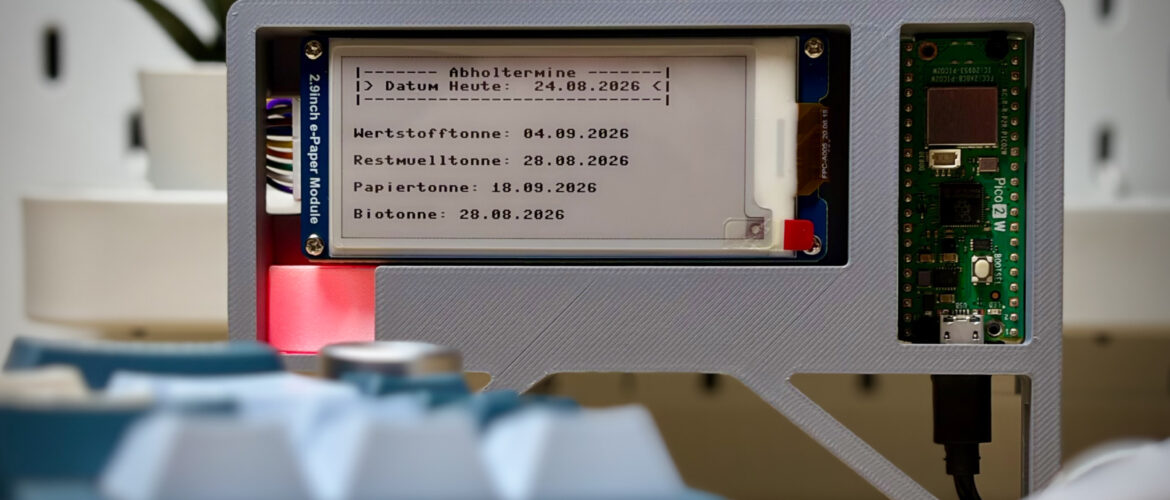
I am the type of person who can be defined by “out of sight, out of mind“. If I don’t see something, it either does not exist or will be forgotten soon. For this reason I am always trying to add visual reminders and clues throughout my day. These reminders can range from an item placed in an unusual location to a blinking LED somewhere that cannot be overlooked.
One task that I have always struggled to remember is when to put out the trash bins for waste collection. The waste management provider in my town offers a smartphone app that is supposed to remind me a day prior to collection, but I tend to overlook notifications on my phone.
Recently, I decided to build a device that cannot be ignored, one that will not stop reminding me until waste collection day has passed.
This is how I designed, programmed and assembled my visual trash collection reminder.
The Goal
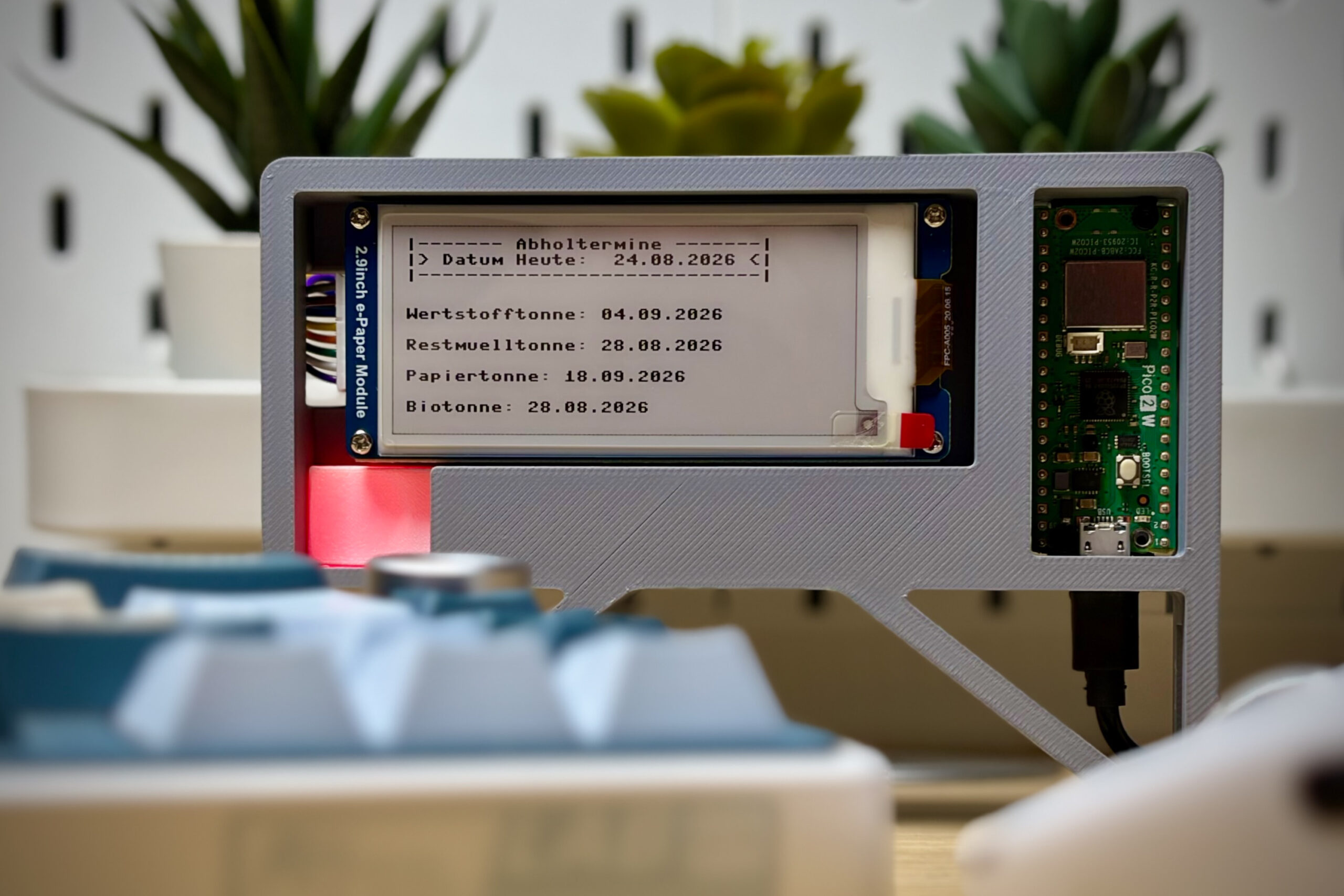
Create a device that can fetch waste collection data from the provider’s website to make an LED blink when trash needs to go out. My wife also added the idea that the device could show the next dates on a screen and highlight the bins that need to be taken care of.
Hardware Overview
The device was designed with low power consumption in mind. The brain is a Raspberry Pi Pico 2W microcontroller, which drives a 2.9 inch Waveshare E-ink display and a small PCB-mounted RGB LED. Overall power consumption is well below one watt, peaking at 0.3 watts while retrieving data from the provider API.
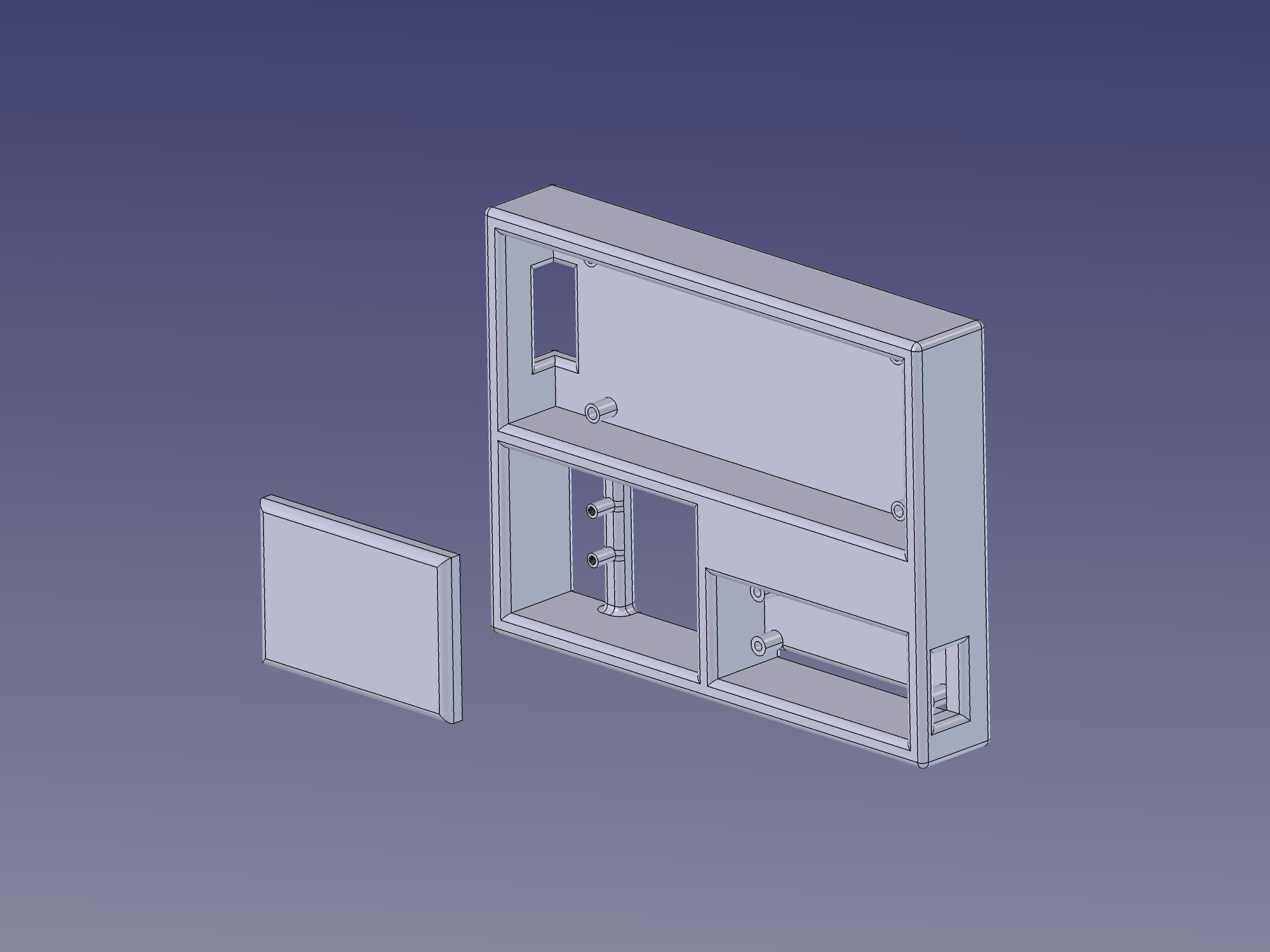
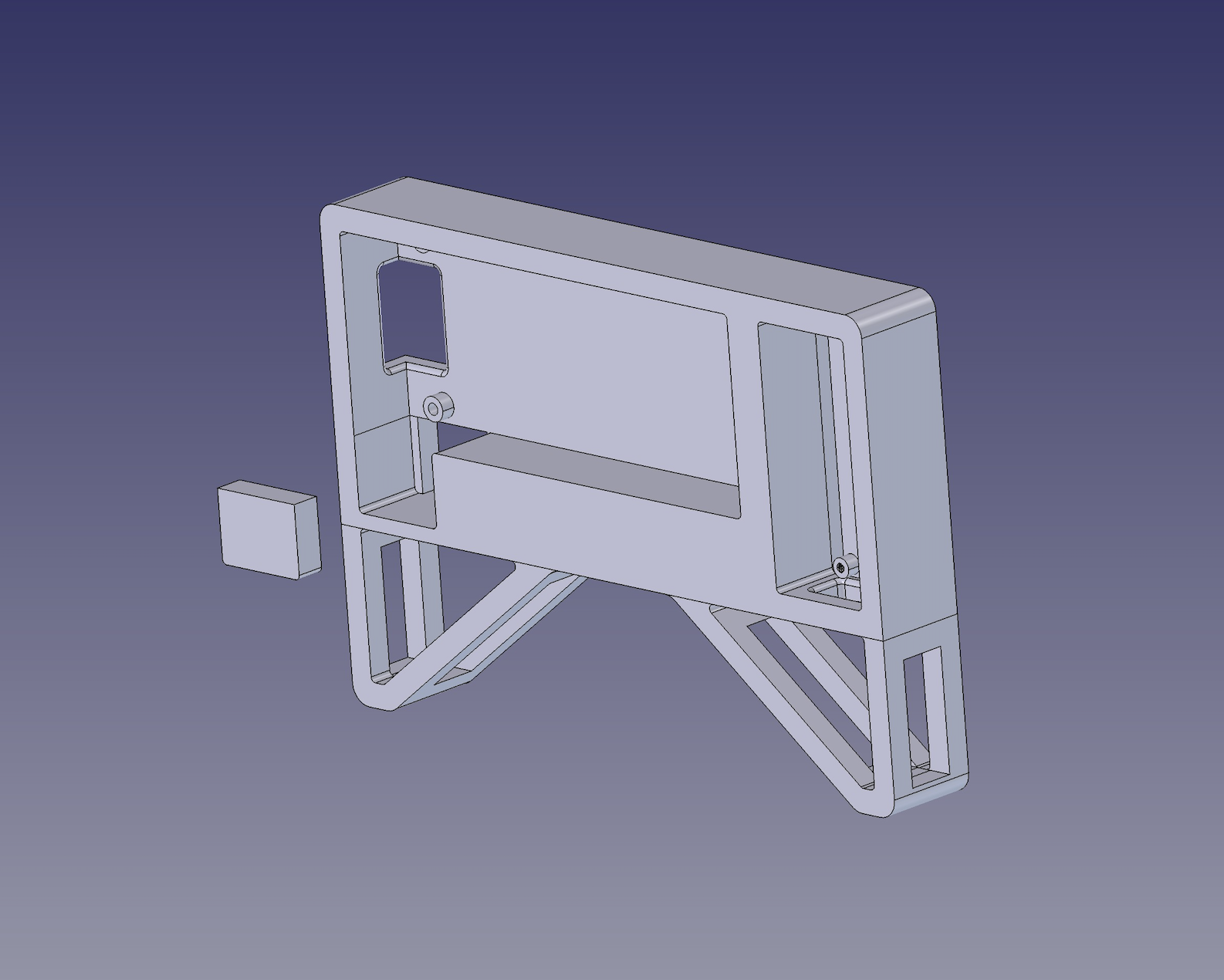
The case was designed in FreeCAD and 3D-printed with PLA. The model includes pre-threaded holes and only requires a few M2 screws for assembly. The case went through multiple design iterations, each version improving either functionality or visual aspects.
Fetching Collection Data
In order to display the next pick up dates, I first needed to find a way to get the latest collection date information for my specific street. My waste collection provider offers a website and a smartphone app to look up the next collection dates so I knew there had to be some sort of API that I could query.
When looking at the network traffic of the public website, I was able to identify the API endpoint and the parameters used to query it. The numbers in the screenshot represent the months that the website requests from the API. Since this screenshot was taken in August 2026, the API call only includes the months August to December. The API responds with JSON data containing the next pickup dates for each available waste type.

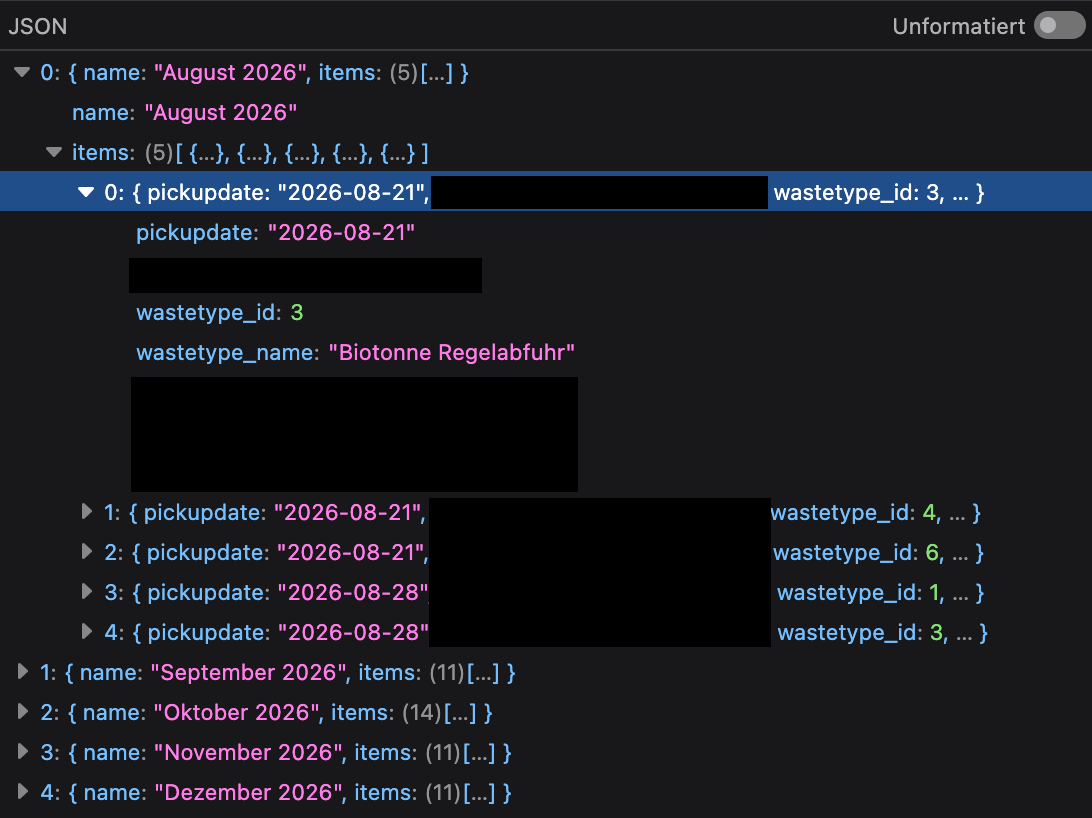
With this information I was able to create a simple MicroPython script to execute the same API call and process the data for further use. The code below queries the waste schedule API and parses the response into a dictionary, sorted by waste type. This dictionary is then parsed into a format that can be displayed on the e-Ink screen.
import requests
import json

# API request function
def get_schedule():
    r = requests.get(f"https://******/api/pickup/filter/******/******/{months}")
    data = json.loads(r.text)
    return data

# data processing
schedule = {}
for month in get_schedule():
    for item in month["items"]:
        trash_id = item["wastetype_id"]
        trash_name = item["wastetype_name"]
        date = item["pickupdate"]
        if trash_id not in schedule:
            schedule[trash_id] = {"name": trash_name, "dates": []}
        schedule[trash_id]["dates"].append(date)

for trash_id, data in schedule.items():
    print(f"{data['name'].split(' ')[0]}: {data['dates'][0]}")
Note: The code above is simplified and does not contain all variables and checks of the full script.
Example result:
Biotonne: 2026-08-21
Papiertonne: 2026-08-21
Restmülltonne: 2026-08-28
Wertstofftonne: 2026-09-04
Connecting to WiFi
To pull data from the internet, the Pico needs to have an active internet connection.
# wifi variables
SSID = "NAT-MY-PROBLEM"
PASSWORD = "asifiwouldtellyoumypassword"

# function to connect to wifi
def connect_wifi():
    wlan = network.WLAN(network.STA_IF)
    while wlan.isconnected() == False:
        wlan.active(True)
        wlan.connect(SSID, PASSWORD)
        time.sleep(5)
        print(f"[DEBUG]: WLAN connected: {str(wlan.isconnected())}")

# function to disconnect wifi (saves power)
def disconnect_wifi():
    wlan = network.WLAN(network.STA_IF)
    wlan.active(False)
    print(f"[DEBUG]: WLAN connected: {str(wlan.isconnected())}")
Driving the E-ink Display
With the collection data ready to be displayed, I had to implement the necessary code to write to the e-Ink display. The manufacturer of the display unit (Waveshare) offers multiple ready to use libraries for easy setup.
Waveshare Github Page: https://github.com/waveshareteam/e-Paper
The workflow is straight forward. Initiate the display, create a buffer of everything you want to show on next refresh and push the data to the e-Ink panel.
# display init
epd = EPD_2in9()


# write date header to buffer
epd.imageblack.text(f"|------- Abholtermine -------|", 5, 5, 0x00)
epd.imageblack.text(f"|> Datum Heute:             <|", 5, 15, 0x00)
epd.imageblack.text(f"|----------------------------|", 5, 25, 0x00)


# determine text color and write collection dates to buffer
if is_urgent:
    led_toggle = 1
    epd.imagered.text(f"{data['name'].split(' ')[0]}: {data['dates'][0]}", 5, count, 0xFF)
else:
    epd.imageblack.text(f"{data['name'].split(' ')[0]}: {data['dates'][0]}", 5, count, 0x00)


# push buffer to display
epd.display()
Note: The code above is simplified and does not contain all variables and checks of the full script.
One small roadblock I encountered was the inability of the display driver to display the German umlauts ä, ö, ü. I worked around this with a function to replace these characters with ae, oe, ue before writing to the display buffer.
# replace umlauts
def replace_umlauts(s):
    if isinstance(s, bytes):
        s = s.decode('utf-8')
    for old, new in (('ä','ae'),('ö','oe'),('ü','ue'),('Ä','Ae'),('Ö','Oe'),('Ü','Ue'),('ß','ss')):
        s = s.replace(old, new)
    return s
Note: The code above is simplified and does not contain all variables and checks of the full script.
Visual Aid
My goal with this project was to create a visual aid I could not miss. To achieve this I added a small RGB LED that would start blinking 24 hours before the collection date. The led_toggle variable in the code below is set during text color evaluation and determines the state of the LED (blinking / off).
from machine import Pin, Timer, PWM

# initialize LED
led = PWM(Pin(2))
led.freq(1000)

# LED variables
timer = Timer()
brightness = 0
max_brightness = 16384
direction = 1

# LED toggle for timer callback
def toggle_led(t):
    global brightness, direction, max_brightness
    brightness += (500 * direction)
    # Reverse direction at limits
    if brightness >= max_brightness:
        brightness = max_brightness
        direction = -1
    elif brightness <= 0:
        brightness = 0
        direction = 1
    led.duty_u16(brightness)

# toggle LED
if led_toggle == 1:
        timer.init(period=100, mode=Timer.PERIODIC, callback=toggle_led)
    else:
        timer.deinit()
        led.duty_u16(0)
Note: The code above is simplified and does not contain all variables and checks of the full script.
What time is it?
The Raspberry Pi Pico has no way to know the current time. While the RP2350 processor does have the ability to keep time, the internal clock resets once the controller is powered off. I therefore had to add logic to pull the current time before evaluating the API response.
import utime

# set the internal clock to the current NTP time
def get_ntp():
    ntptime.host = "pool.ntp.org"
    ntptime.settime()
    time.sleep(2)
    t = utime.localtime()
    today = f"{t[0]}-{t[1]:02}-{t[2]:02}"
    return today

# set current_time variable
current_time = get_ntp()
Note: The code above is simplified and does not contain all variables and checks of the full script.
Refresh cycle
A microcontroller such as the Raspberry Pi Pico works by simply executing the main.py script located on its storage. Once execution finishes, the controller simply waits for new instructions. Since this project is designed to keep running indefinitely, a simple loop with a sleep timer is required. I decided to use a six hour sleep interval. This ensures that data is refreshed overnight while not hammering the provider’s API and burning out the e-Ink display with constant refreshing.
# Main Loop

while True:

   # Main loop logic (connect wifi, query API, query NTP, process data, disconnect wifi)

   print("[DEBUG]: Sleeping for 21600 seconds!")
   time.sleep(21600)
More ideas
I still have a few ideas that I would like to implement:
- Ability to acknowledge the task after it has been completed
- The LED currently starts blinking 24 hours before pickup and does not stop until the day after pickup
- A better way to determine the variables needed for your street & trash bin selection
- This currently needs to be done via Browser Developer Tools
At some point I would also like to release the project on my Codeberg page (https://codeberg.org/DailyCompute). However, due to the limited scope, I first want to make sure that the provider is okay with this.
Downloads
Case Design V1: https://www.printables.com/model/1771948-waveshare-29-epaper-desk-frame-raspberry-pi-pico-2
Case Design V4: https://www.printables.com/model/1822257-another-waveshare-29-epaper-frame-raspberry-pi-pic